Peer-to-peer · Mac
A direct Wi-Fi connection between the iPhone and Mac. Enable peer-to-peer in both the app and server.
Connection setup →Choose a topic below. Enable JavaScript for guided, platform-specific steps.
If this worked before, note any recent app, operating-system, router, or security-software change. Include that in your support message.
On your iPhone or iPad, open Settings → Privacy & Security → Local Network and enable Mobile Mouse. Reopen the app and try connecting.
On Macs that show a Local Network section under System Settings → Privacy & Security, also allow Mobile Mouse Server. If the app is not listed, open it and try discovering your computer to trigger its permission request.
Connect both devices to the same trusted network. The computer name in Mobile Mouse is not the Wi-Fi name. An Ethernet-connected computer can work too, if its cable connects to the same local network as the phone’s Wi-Fi.
Matching names are a first check, not a guarantee: guest, hotel, school, and work networks may prevent devices from communicating.
On hotel, school, work, or guest Wi-Fi, device isolation may block local control. Ask the network administrator whether devices can communicate, or choose another connection method below.
Windows: In Settings → Network & internet, open the connected Wi-Fi network’s properties (or Ethernet). Use the Private network profile only for a network you trust, such as your home network. Leave public networks Public. Changing this setting cannot remove restrictions imposed by a router.
If you use a VPN, check whether it allows access to local-network devices. On a device you manage, briefly disconnect the VPN and retry. Reconnect it after the test. If that fixes the problem, enable its local-network-access option or ask its provider for help.
Work-managed devices may require your administrator’s help. Do not change organization-managed security settings.
Only run this test on a trusted private network. Keep this page open so you can turn protection back on immediately afterward.
If you cannot perform this test, skip it. Do not disable antivirus protection or your router’s firewall.
Leave the firewall on for this step.
Retry with protection enabled. If it still fails, record the security product’s name for support. Do not leave the firewall off as a workaround.
Use the address of the active Wi-Fi or Ethernet connection—not a VPN adapter or an internet “what is my IP” website.
ipconfig, and find the active Wi-Fi or Ethernet adapter.192.168.1.20 and 192.168.1.35 match; 192.168.2.35 does not. The full addresses must be different.Other subnet masks need a different comparison—send the addresses and masks to support or ask your network administrator. Do not manually change addresses just to make them match. Even matching subnets can have device-isolation restrictions.
Open Mobile Mouse Server settings on the computer. In the mobile app’s server connection settings, enter the IP address and port shown by the server. If the computer has multiple addresses, use its active local Wi-Fi or Ethernet address.
If this works, the problem is automatic discovery. On Windows, check that Bonjour is installed and running if included by your server installer. Security software must allow discovery as well as the server connection.
A saved manual address can become outdated after a network change. Clear both IP and port fields so they show Auto to return to discovery. Manual entry cannot bypass network isolation. Never forward router ports as part of this local-network check.
A direct Wi-Fi connection between the iPhone and Mac. Enable peer-to-peer in both the app and server.
Connection setup →Connect over the internet with an active Cloud subscription. Both devices need internet access, and the computer must stay awake with the server running. Network policies may still restrict access.
Cloud setup →A separate app with its own setup and device requirements. Check compatibility before choosing it.
Visit the Bluetooth website →Peer-to-peer is for a Mac. Keep Wi-Fi enabled on both devices and bring the phone near the Mac. Enable peer-to-peer in the mobile app’s server settings and in Mobile Mouse Server settings on the Mac, then reconnect.
If you return to normal local-network use, disable peer-to-peer in both places. Mismatched settings can affect connection and performance.
An Apple account used for an App Store purchase is not the same thing as signing in to your Mobile Mouse account. Cloud cannot reach a computer that is asleep or offline.
If permitted, try the phone on cellular data or a different trusted internet connection. Review whether VPN or security software blocks Mobile Mouse Server’s internet access. On managed networks, ask the administrator.
If changing networks resolves it, tell support which connection fails and what security software is installed. Do not open router ports or disable protection permanently.
For a local server password prompt, open Mobile Mouse Server settings on the computer and review or change the connection password. Reconnect using that password.
This is separate from your Mobile Mouse Cloud account password. Do not send either password to support. If the message is a Cloud sign-in error, use the account-help path instead.
Keep Mobile Mouse open in the foreground, leave the phone unlocked, and keep the computer awake for a short test. Does it stay connected now?
If so, note whether phone lock, switching apps, computer sleep, or changing networks triggers the problem. Reopen the app and reselect the computer after waking it. The server must be running after restart or sign-in.
If the problem happens during active use too, continue with connection-quality checks. Include the trigger and whether reconnecting helps in your support summary.
Move the phone closer to the Wi-Fi router. If practical, connect the computer to that same router by Ethernet and retry. Pause large downloads during the test.
For ordinary local-network use, turn peer-to-peer off in both the mobile app and Mac server, then reconnect and compare.
Bring the phone close to the Mac and keep Wi-Fi enabled on both. Confirm that peer-to-peer remains enabled in both the app and Mac server. Retry without moving away from the Mac.
If a trusted local network is available, compare with local-network control by disabling peer-to-peer in both places. Restore your intended connection settings afterward and note which method performs better.
Check the internet connection on both the phone and computer. Pause large downloads or uploads, then retry. If permitted, compare the phone’s Wi-Fi with cellular data or another trusted internet connection.
If both devices are nearby, compare with a local-network connection. If local control is smooth but Cloud is delayed, include that result in your support request. Internet download speed alone does not guarantee responsive control.
Open Mobile Mouse Server settings. Under Touch Motion, adjust Pointer Speed and Acceleration a little at a time. Under Air Motion, adjust the X/Y speed and acceleration for motion control. Scrolling has separate X/Y settings.
If movement responds immediately but travels too far or too little, these settings are the right place to start. If movement arrives late or pauses, choose the delay/jerky-movement path instead.
See server settings →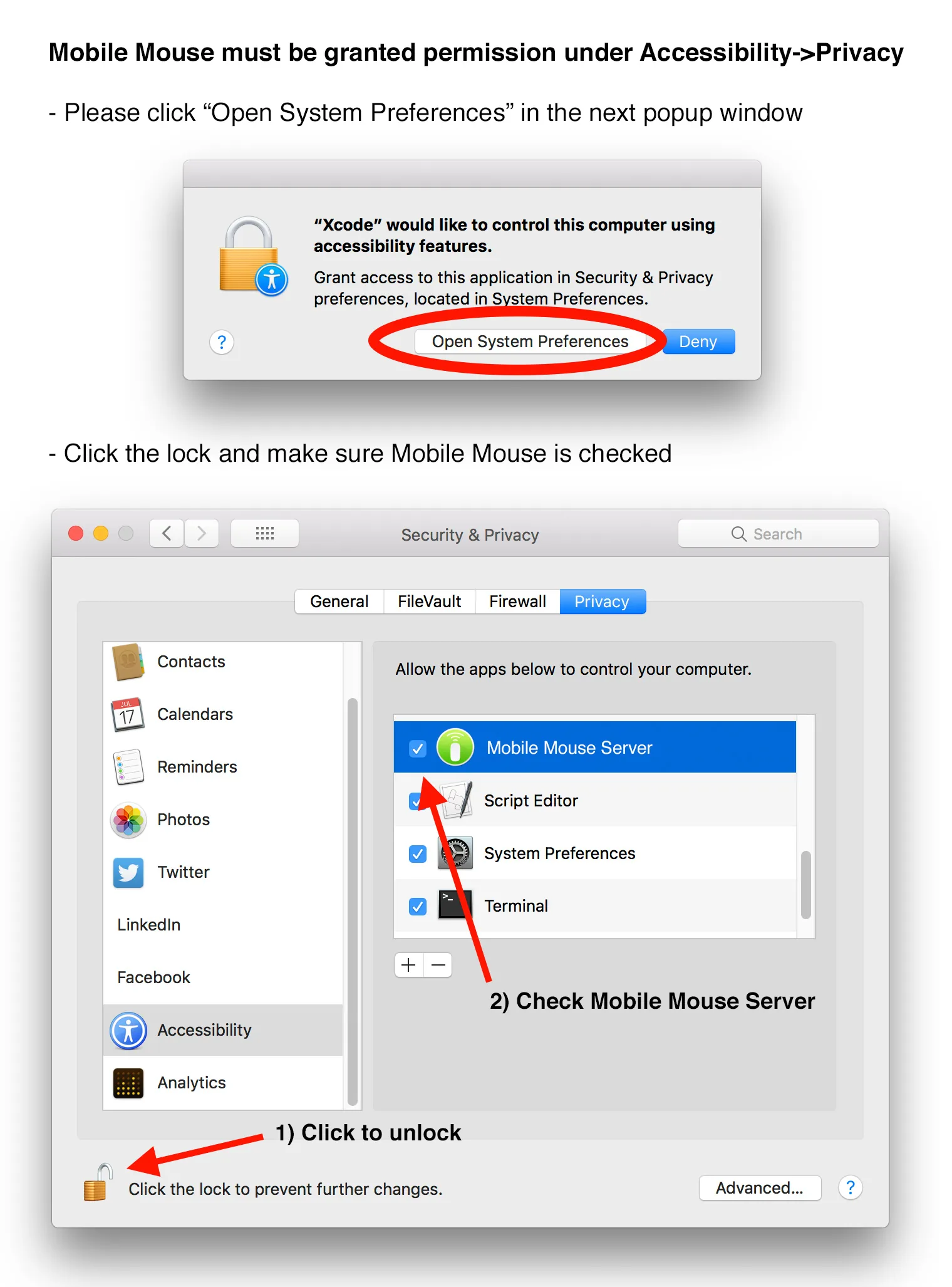
The appearance varies by macOS version.
If permission is already enabled but an update changed the behavior, turn it off and on again, then relaunch the server. Tell support if macOS will not retain the permission.
Open Windows Security → Protection history and look for an action involving Mobile Mouse or a component installed with its server. Check your third-party antivirus history too, if applicable.
A blocked helper can affect input even while the connection works. Record the detection name and affected file path. Do not assume every detection is a false positive or restore an unfamiliar file. Contact support to confirm a Mobile Mouse component before allowing it.
If installation was incomplete or a helper was removed, download the current server installer from our official downloads and run its setup again. Restart if the installer requests it. If input still fails, send support the installer version and detection details so we can check the helper services.
Compare the failing application or screen with a blank document in TextEdit or Notepad. If input works in the test document, the connection and basic input are working.
Bring the target application to the front and click its text field with the computer’s own mouse. Compare its normal controls with the same actions performed in Mobile Mouse. Record which actions fail and whether the app is running full-screen.
If the failure is limited to an administrator prompt, sign-in screen, or an application running as administrator, tell support exactly which screen is involved. These can require different input support and helper configuration for your server version. Do not disable User Account Control as a workaround.
If the failure is limited to the Mac login or lock screen, sign in directly on the Mac and test again with Mobile Mouse Server running in your user session. Tell support whether the problem occurs only before sign-in. If ordinary input works but application-specific remote buttons fail, use Media or application controls.
Change one setting at a time and retry. See the controls guide for gestures and app settings for these options.
On the computer, click inside a blank document in TextEdit or Notepad. Type a short, harmless example from Mobile Mouse and compare ordinary letters with the characters or shortcut that fails.
If typing works here but not in one application, use Only one app, login, or administrator screen. For help opening the app’s keyboard, see the controls guide.
Bring the media, browser, or presentation application you want to control to the front on the computer. Application-aware remotes depend on the active application and its configured controls.
Test the same action directly in that application. Then compare its remote button with ordinary mouse/keyboard control from Mobile Mouse. If only remote buttons fail, continue to the program configuration check.
Note the application name/version and the exact button that fails, such as play/pause, next slide, or volume.
Use the same Mobile Mouse account in the app and server. Check the email address on both devices. If you have forgotten the password, use the password-recovery option on the sign-in screen, if available, or contact support.
Record the exact error. Never send your password, verification code, or recovery link. The local server connection password is a separate setting.
Confirm which app and feature you purchased. Mobile Mouse, its separate Bluetooth/USB apps, and Cloud access have different requirements; a purchase in one does not automatically establish access in another.
For an App Store purchase, confirm the device uses the Apple account that made it. Check the purchase/subscription in your Apple account and use Restore Purchases if that option appears in the relevant app’s purchase screen.
If an active purchase is still not recognized, contact support with the app name, feature, purchase date, and any error. Do not buy it again just to troubleshoot.
On iPhone or iPad, open Settings → your name → Subscriptions, select the relevant subscription, and review its status or cancellation options.
If it is not listed, check which Apple account made the purchase and who billed you. For Apple-billed refund requests, visit Apple’s Report a Problem. For other billing or unclear charges, contact support with the product and billing provider—never full payment-card details.
In the app’s Servers list, confirm that the selected computer is the one you are watching. On that computer, open TextEdit or Notepad and click inside a blank document using the computer’s own mouse.
Try moving the pointer, clicking with the app’s mouse buttons, and typing a few letters. If none respond, quit and reopen Mobile Mouse Server, then reconnect. Record whether the app still reports a connection.
If input works here but fails in another app or at sign-in, choose Only one app, login, or administrator screen in the problem details.
Try the same click, drag, or scroll in another ordinary desktop application. Compare tapping with the explicit mouse buttons in Mobile Mouse.
If a mouse button works but its gesture does not, include the gesture and relevant app settings in your support request. If the action fails only in one computer application, include that application’s name and version.
If the pointer responds late or pauses as well, use It disconnects or feels slow instead.
Open the mobile app’s settings and find Key Buffer. This collects text on the phone before sending it, which can help with autocorrection and keyboards that compose characters.
Compare the same short example with Key Buffer enabled and disabled. Record the original setting and restore it if the change does not help. See app settings.
For support, include what you typed, what appeared, both keyboard languages, and whether buffering changed the result. Use sample text, never a password.
Open Program List in Mobile Mouse Server and check that the target application’s definition is enabled. If you created a custom definition for an application already covered by a managed definition, disable the duplicate managed definition to avoid a conflict.
For custom buttons, check that the assigned keyboard shortcut performs the intended action when used directly on the computer. See Program setup.
If macOS requested permission for Mobile Mouse to control this application, check the relevant entry under System Settings → Privacy & Security → Automation. Only applications that have requested this access appear there.
If it still fails, include the application/version, failing button, and whether you use a managed or custom definition in your support request.
A computer appearing in the app’s Servers list does not guarantee that its server is still reachable. Confirm Mobile Mouse Server is open on that computer, then reselect it in the app.
If you previously entered an IP address or port manually, compare them with the values currently shown by the server. An old address may stop working after a network change. Clear both fields so they show Auto to use automatic discovery again.
If a password is requested or rejected, choose It asks for a password in the problem details. Otherwise, continue with network checks and note the exact connection error.